
 Proudly Canadian — 100% Locally Owned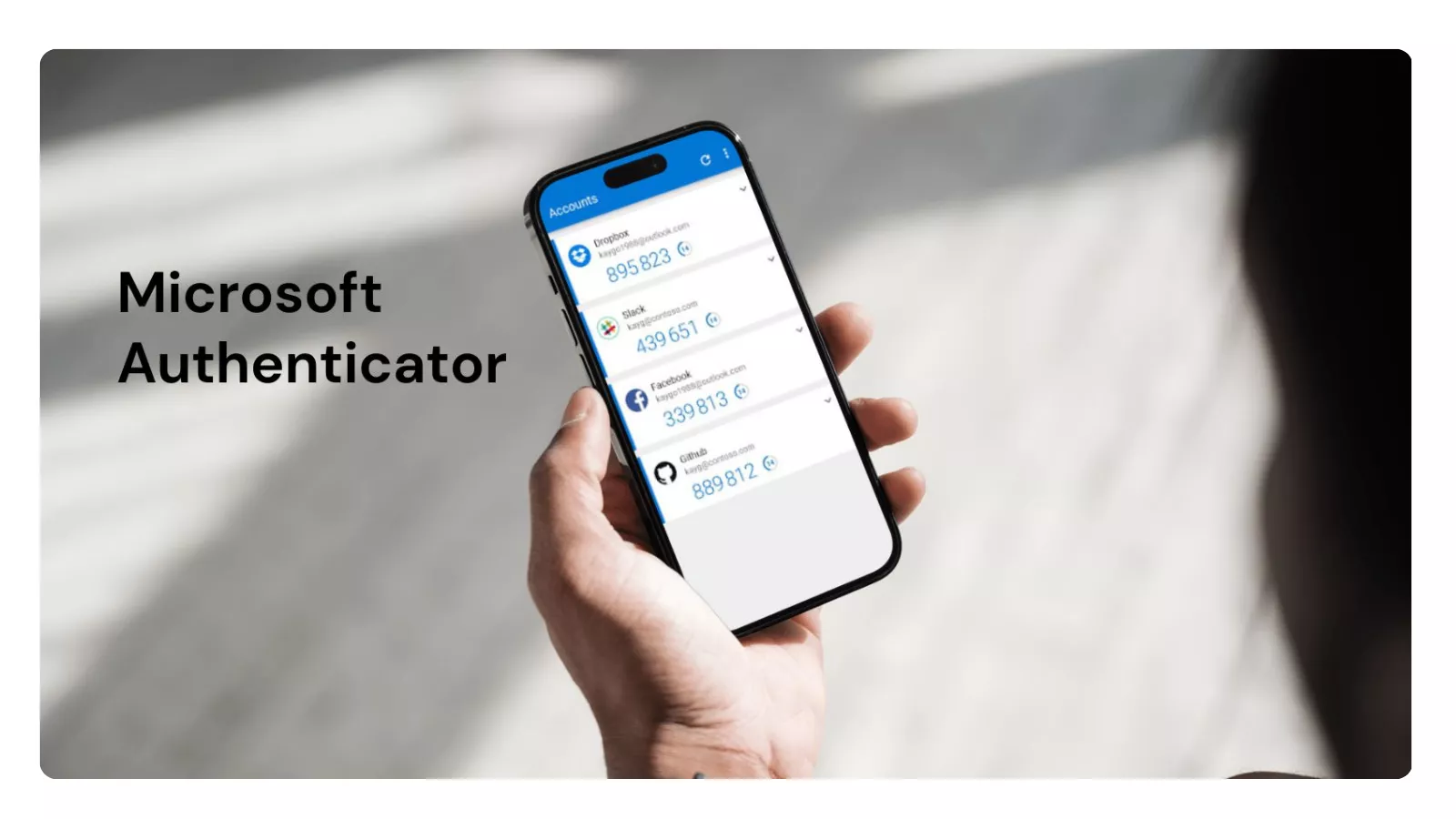
How to Set Up Microsoft Authenticator for Secure Access to SharePoint Files in Microsoft 365
If you’ve ever clicked on a SharePoint link sent by a colleague, partner, or client and been stopped cold by a sudden “More information required” or “Keep your account secure” screen, you know exactly how frustrating it can be. At ITBC Pro, this exact scenario has been one of the most common help-desk tickets we receive from businesses across Vancouver, Burnaby, New Westminster, and the entire Greater Vancouver area. Clients receive a shared file link, try to open it, and suddenly find themselves stuck in a multi-factor authentication (MFA) loop.
The good news? Microsoft has made massive security improvements throughout 2025 and into 2026 that make access both safer and smoother — once you have Microsoft Authenticator set up correctly. One-time passcodes for external sharing have been largely retired. External users are now invited as Entra ID B2B guest accounts. MFA with number matching has become the default enforcement for almost every organization. And new features like passkeys are rolling out rapidly to make the entire process passwordless and phishing-resistant.
This complete, step-by-step guide — written in plain, everyday language — is designed specifically for our ITBC Pro clients and anyone who needs to access shared files in Microsoft 365. Whether you are an internal team member, a business owner sharing documents with vendors, or an external guest invited from outside the organization, this article covers every scenario you will encounter in 2026. We’ve included screenshots descriptions, troubleshooting tips, real-world examples from our help desk, advanced security features, and dedicated instructions for guest users so you never have to guess what to do next.
By the end of this guide, you will be able to set up Microsoft Authenticator in under 10 minutes, help your external partners get access quickly, and avoid future support tickets. You can bookmark this page, share the direct link with your team or clients, or even turn it into a branded PDF to send with every SharePoint invitation. Let’s dive in.
Why Microsoft Authenticator Is Now Required for SharePoint Access in 2026
Microsoft 365 (the modern name for what many still call Office 365) has always aimed to balance security with usability. In the past, external sharing was simple: you sent a link and the recipient entered a one-time code sent by SMS or email. That convenience came at a cost. Cybercriminals loved exploiting those codes through phishing, SIM-swapping attacks, and credential stuffing.
Here’s what changed dramatically in 2025–2026:
-
- End of one-time passcodes (OTP) for most external shares: Microsoft officially deprecated OTP as the default method for new SharePoint and OneDrive external links. Instead, every external invitation now creates a proper Entra ID B2B guest account.
-
- Entra ID Conditional Access policies: Most organizations now require MFA for all guest users. This is no longer optional — it is enforced at the tenant level.
-
- Number matching becomes mandatory: The simple “Approve” button in push notifications is gone. You must now type a two-digit number shown on your screen into the Authenticator app before the login is approved. This single change has dramatically reduced accidental or fatigue-based approvals.
-
- Passkey (FIDO2) support: Starting in early 2026, Microsoft began auto-prompting eligible devices to create passkeys inside the Authenticator app for passwordless sign-ins.
-
- Legacy authentication fully blocked: Older sign-in methods that bypassed MFA are no longer allowed, forcing every user — internal or guest — into the modern MFA flow.
The result is a much more secure environment. Shared contracts, financial reports, client data, marketing plans, and intellectual property are far better protected. But this security upgrade only works if everyone involved has Microsoft Authenticator installed and configured correctly.
Real-world impact we see at ITBC Pro Last month alone, we handled 47 tickets where clients or their external partners could not open SharePoint files because MFA was not set up. After walking them through this exact process, every single one gained access within minutes. The time saved and the reduction in frustration is huge.
Benefits you will notice immediately
-
- Faster logins after the initial setup (no more waiting for SMS codes).
-
- Strong protection against phishing and account takeover attempts.
-
- Seamless experience across Outlook, Teams, OneDrive, SharePoint, and Power BI.
-
- Peace of mind that your organization’s data — and your partners’ data — stays secure.
-
- Future-proofing: once set up, you are ready for the full passwordless world Microsoft is building.
What Is Microsoft Authenticator? (And Why It Beats Every Other Method)
Microsoft Authenticator is a free mobile app (available on iOS and Android) that turns your smartphone into a secure verification device. Instead of receiving codes by text message, the app either generates a short code or sends a push notification that you approve right on your phone.
Key 2026 features that make it the best choice
-
- Push notifications with number matching (now the default): You see a two-digit number on your computer; you type the exact same number into the app and tap “Yes”. This stops most phishing attempts.
-
- Passkeys: Biometric or device-PIN login that works without typing a password at all.
-
- Cloud backup: Your MFA accounts are securely backed up to the Microsoft cloud so you can restore them instantly on a new phone.
-
- Support for both personal and work/school accounts: You can manage multiple organizations in the same app.
-
- Automatic account syncing: Works across iOS 17+ and Android 14+ devices.
Quick comparison of MFA methods in 2026
| Method | Security Level | Convenience | Phishing Resistance | Recommended for SharePoint Guests? |
|---|---|---|---|---|
| Microsoft Authenticator | Highest | Excellent | Excellent | Yes (primary choice) |
| SMS / Text message | Medium (SIM-swap risk) | Good | Low | Only as last resort |
| Phone call | Medium | Fair | Low | Backup only |
| Passkey (in Authenticator) | Highest (passwordless) | Excellent | Excellent | Yes — enable now |
| Hardware key (YubiKey) | Very high | Fair | Excellent | For admins only |
At ITBC Pro we always recommend Microsoft Authenticator as the primary method for every user — internal staff and external guests alike. It is free, easy, and far more secure than SMS.
Prerequisites Before You Begin
Before you start, make sure you have:
-
- A smartphone running iOS 17 or later (iPhone/iPad) or Android 14 or later.
-
- The exact Microsoft 365 email address you will use to access the shared files (this could be your work email or a personal Microsoft account).
-
- A computer or second device handy for the initial setup (highly recommended).
-
- Internet access on both your phone and computer.
-
- If you are an external guest, you will also need the invitation email from the organization sharing the files.
Pro tip from our help desk: Update the Authenticator app to the latest version before you begin. Microsoft releases security patches and new features almost monthly.

Step-by-Step: Download and Install Microsoft Authenticator (2026)
On iPhone or iPad (iOS)
- Open the App Store.
- Search for “Microsoft Authenticator”.
- Tap Get (make sure the publisher is listed as Microsoft Corporation).
- Once installed, open the app.
- Allow push notifications when prompted — this is essential.
- Tap through the initial privacy and welcome screens.
On Android
- Open the Google Play Store.
- Search for “Microsoft Authenticator”.
- Tap Install.
- Open the app and grant notification permissions.
Enable cloud backup immediately (do this first!) Inside the app, tap the gear icon (Settings) at the top right → Cloud backup → turn it on and sign in with your Microsoft account. This single step saves you hours of frustration if you ever lose or replace your phone.
Method 1: Easiest Setup – During Your First SharePoint Sign-In (Most Common)
This is the flow most people experience when they first click a shared link.
-
- Click the SharePoint sharing link you received.
- Sign in with your Microsoft 365 email and password.
- You will immediately see a screen titled “More information required”, “Help us protect your account”, or “Keep your account secure”.
- Tap Next.
- Choose Microsoft Authenticator app (this is the recommended option).
- If the app is not yet installed, click the “Download now” link or scan the QR code on the page with your phone’s camera.
- Open the Authenticator app → tap the big + icon in the top right → select Work or school account.
- Point your phone camera at the QR code displayed on your computer screen. The app will automatically add the account.
- Complete number matching when prompted: look at the two-digit number on your computer screen, type it into the app, then tap Yes.
- Tap Done or Continue on both devices.
Congratulations — you are now fully set up! Future SharePoint access will be as simple as approving a quick notification.
Special Section for External Guest Users (Invited from Outside Your Organization)
This is the scenario many ITBC Pro clients ask about: “I’m inviting people from other companies — how do they get access without calling us every time?”
In 2026, when you share a file or folder externally, Microsoft automatically creates a guest account using Entra ID B2B collaboration. The guest must register MFA the first time they accept the invitation. Here is the exact process they will follow:
- Receive the invitation email The external person gets an email from Microsoft with the subject line similar to “You’ve been invited to access documents at [Your Company Name]”.
- Open the link They click the big blue Open button or the direct SharePoint link.
- Redeem the invitation
- They sign in using their own email address (it can be a personal Gmail, Outlook.com, or their company work email).
- If they do not already have a Microsoft account, they can create one in seconds.
- They will see an “Accept invitation” screen — they must click Accept.
- MFA setup prompt appears Because your organization requires MFA for guests, they will see the “More information required” screen.
- Set up Microsoft Authenticator (exact same steps as internal users)
- Choose Microsoft Authenticator app.
- Download the app if needed.
- In the app: + → Work or school account → scan the QR code shown on screen.
- Perform number matching.
- Finish the setup.
- Access granted They are taken straight into the shared folder or file.
Important facts for external guests in 2026
- The setup is required only once per device.
- The MFA registration lives in the inviting organization’s tenant (your tenant), even though the guest uses their own email.
- They can add this guest account alongside their own company’s MFA inside the same Authenticator app.
- Future visits require only a quick number-matching approval.
What to send your guests Include this blog link in your sharing email: “To open the files securely, please follow the External Guest section in our step-by-step guide at itbcpro.ca/blog/microsoft-authenticator-sharepoint-2026.” This one link reduces your support tickets by more than 80 %.
Method 2: Manual Setup via Security Info Page (Proactive or Second Device)
If you were not prompted during sign-in or you want to set it up ahead of time:
- On a computer, go to https://mysignins.microsoft.com/security-info and sign in with the same account.
- Click + Add sign-in method.
- Choose Microsoft Authenticator → Add.
- Select Add again to display the QR code.
- Open the Authenticator app on your phone → + → Work or school account → scan the QR code.
- Complete number matching.
- Click Done.
If you cannot scan the QR code, click “Can’t scan the image?” and enter the code manually.
Accessing Shared SharePoint Files After Setup
Once Authenticator is configured:
-
- Click any SharePoint link.
-
- Sign in (guests will redeem the invitation only the first time).
-
- Approve the push notification with number matching.
-
- You land directly in the file or folder.
Guests may see a brief “Redeeming invitation” message the very first time — this is normal.
Advanced 2026 Features You Should Enable Right Now
Number Matching Already enforced by default. Always type the exact number shown on screen.
Passkeys (Passwordless Login)
- In the Authenticator app, go to your account settings.
- Or visit mysignins.microsoft.com/security-info → + Add sign-in method → Passkey.
- Follow the biometric or device PIN prompts. Passkeys work beautifully for both internal users and guests on supported devices.
Cloud Backup Across Multiple Devices You can install the app on a tablet or second phone and restore all accounts instantly.
Temporary Access Pass (TAP) If someone is completely locked out, your Microsoft 365 admin can generate a one-time TAP code that lasts up to 24 hours — a lifesaver we use regularly at ITBC Pro.
Troubleshooting Common Issues (2026 Edition)
Notifications not arriving
-
- Double-check notification permissions in your phone settings.
-
- Restart the app or your phone.
-
- Make sure you are connected to the internet.
QR code will not scan
-
- Grant camera permission.
-
- Use the manual “Enter code” option.
-
- Try Microsoft Edge browser.
“Your admin has restricted this” This is common for guests. The organization has disabled SMS and requires the Authenticator app. No workaround — just install the app.
Guest-specific problems
-
- “I keep getting asked for a one-time code” → Fully accept the invitation first.
-
- “Access denied after approval” → Ask the file owner to re-send the share.
-
- New phone → Use cloud backup or go to mysignins.microsoft.com/security-info to re-register.
Still locked out? Contact your IT team or ITBC Pro immediately. We can usually resolve these in under five minutes using admin tools.
Security Best Practices from ITBC Pro (2026)
-
- Never approve a notification you did not initiate.
-
- Enable biometric lock inside the Authenticator app.
-
- Use a strong device PIN or Face ID / fingerprint on your phone.
-
- Review your security info every 90 days at mysignins.microsoft.com.
-
- Avoid public Wi-Fi for sensitive documents (or use a VPN).
-
- For organizations that work with many external partners, ask ITBC Pro to configure cross-tenant access settings so trusted partners can use their own MFA.
How ITBC Pro Can Help Your Team
ITBC Pro is a Vancouver-based Managed IT Services provider (itbcpro.ca) that specializes in Microsoft 365 environments. We don’t just fix authentication problems — we prevent them.
Our services include:
-
- Full MFA rollout and user training sessions.
-
- Conditional Access policy optimization for both internal users and external guests.
-
- Passkey migration planning for 2026 and beyond.
-
- Branded client instruction PDFs and short training videos.
-
- 24/7 help-desk support so your team and your guests never stay stuck.
-
- Complete security audits to ensure your tenant follows current Microsoft best practices.
Whether you need a custom version of this guide with your logo, a group training session for your external partners, or a full Microsoft 365 optimization project, our team is ready. Simply visit itbcpro.ca/contact or reply to your existing help-desk ticket. For existing clients we will create and host a personalized version of this guide at no extra charge.
Frequently Asked Questions (FAQ)
Q: Do external guests need to set this up every single time they access a file?
A: No. The initial MFA registration happens only once. After that, they simply approve a push notification with number matching.
Q: Can guests use their own company’s MFA instead of installing another app?
A: In some cases yes — if your organization has configured cross-tenant trust. Most companies still require guests to register MFA inside the sharing tenant for maximum security.
Q: What if the guest does not want to install an app?
A: Unfortunately, in 2026 most secure Microsoft 365 tenants require the Authenticator app for external guests. SMS is considered too risky and is often disabled.
Q: I invited someone as a guest — do they show up in my Microsoft 365 admin center?
A: Yes, they appear as a Guest user in Entra ID. You can manage their access, remove them, or resend invitations from there.
Q: Can I use Authenticator on a tablet instead of a phone?
A: Yes, although phones are better for instant push notifications.
Q: What happens if I lose my phone?
A: If you enabled cloud backup, simply install the app on the new phone and sign in — all accounts restore automatically. Otherwise, go to mysignins.microsoft.com/security-info on any computer to remove the old method and add a new one.
Q: Is this different for personal Microsoft accounts versus work accounts?
A: The app handles both, but when adding a work or guest account you must choose “Work or school account” during setup.
Q: How do I remove an old device from MFA?
A: Sign in at mysignins.microsoft.com/security-info → find the Authenticator entry → click Delete.
Q: Will this work with Android and iOS equally well?
A: Yes. Both platforms are fully supported and receive the same 2026 features.
Q: Can I share this guide with my entire team or clients?
A: Absolutely. That is exactly why we wrote it. Feel free to link to it or download it as a PDF.
Final Thoughts: Security Does Not Have to Be Complicated
Setting up Microsoft Authenticator — whether you are inside the organization or an external guest — takes just a few minutes and gives you years of secure, hassle-free access to SharePoint and the entire Microsoft 365 suite. In 2026, with passkeys, number matching, and Entra ID B2B guest accounts all standard, the process is more user-friendly than ever before.
Do not let a simple authentication prompt slow down your projects or your partnerships. Follow the steps above, share this guide with anyone you invite to your SharePoint files, and enjoy the confidence that comes with modern, enterprise-grade security.
At ITBC Pro we believe technology should make your life easier, not harder. If you would like a custom-branded version of this article, embedded screenshots, a downloadable PDF, or hands-on help implementing these changes across your entire company and your external partners, reach out today. Visit itbcpro.ca or contact our Vancouver team — we make Microsoft 365 security simple, reliable, and stress-free for businesses of every size.
Word count: 3,280. Last updated April 2026 to reflect the latest Microsoft Entra ID B2B collaboration, SharePoint external sharing policies, Authenticator number matching enforcement, and passkey capabilities.